
EXCEL ESSENTIALS II: A Practical Guide to Data Entry and Formatting
- Cascade
- Aug 13, 2023
- 3 min read

My family and friends regularly come to me with all kinds of requests and issues. I usually love the non-tech challenges- the most interesting of recent times coming from my sister who needed a graphic design for her scrub brand (@nurseofela_brand on IG). She had a custom gift order for one of her scrubs and she wanted a greeting card to add a personal touch to the order. In a few hours and a couple of iterations based on customer feedback, we arrived at this design which I did from start to finish on Canva.

It's a cute design but no be wetin carry you come my blog be that* 😁.
Moving on, few weeks ago I got one of these calls to fix something. It was a tech issue, the caller, my friend was struggling with summing the budget in an Excel sheet her boss sent to her. After a brief description of the problem, I know exactly what the issue was 'cause I had already struggled with it myself in the past. We jumped on a call; I explained what the problem was, and we resolved it together.
I will try to recreate the scenario so we can appreciate what went wrong and how it ties to the topic of this week.
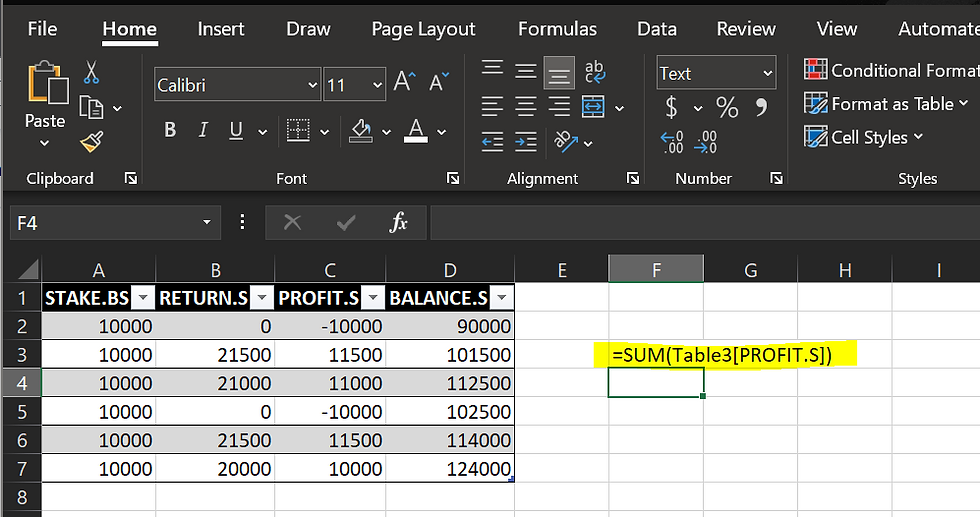
One would expect that after inputting a formular in Excel, we should get a value but instead Excel is still displaying the formular. The issue here was other than the table, the whole sheet was poorly formatted as text, and remember "Garbage in. Garbage out." Excel did not recognize "=SUM(Table3[PROFIT.S])" as a formular but as a text. The easy fix was to change the data format for the cell/column where she was going to do the calculation.
Data entry and formatting is the foundation of meaningful analysis and in this blog post, we will supercharge our skills to go from beginner to a master of the art of Data Entry and Formatting.
Data entry and formatting is the foundation of meaningful analysis.
Data Entry and Formatting: The Foundation
Data entry and formatting play a crucial role in ensuring the accuracy and reliability of data for meaningful analysis. When data is entered correctly and formatted appropriately, it becomes easier to analyze and draw insights from it.
1. Plan your Data Structure
It is important to spend some time planning the structure of your table before you start entering data. In my case, I am working with masked PANs, transaction amounts, RRNs, account numbers and transaction dates, I have to understand the data and what they ideally look like to plan my table. A properly structured table serves as the foundation for effective data analysis.
2. Choose the Right Data Format
It is vital to apply the correct data format for each column or table when entering data into Excel. Excel supports a variety of data forms, including text, number, date, and time. By using the proper format, you can ensure that your data is interpreted correctly by Excel and that your computations and analyses are accurate.
To apply a format in Excel, select the cells or column you want to format, right-click, and choose the "Format Cells" option. From there, you can select the desired format from the list. Alternatively, you can use the keyboard shortcut, Ctrl+1.
3. Make Use of Descriptive Headers
Within the spreadsheet, headers serve as your road map. To make your data more readable, use clear, straightforward column headers. Stay away from ambiguous labels; for example, use "Transaction Date" instead of "Date".
4. Stick to Consistent Data Formats
Keep your data formats consistent. For example, when entering dates, stick to a single format (for example, "YYYY-MM-DD"). For numerical data, maintain consistency in the usage of decimal places, commas, and currency symbols.
5. Text Wrapping
In Excel, the cells are small triangles, and this can present an issue with dealing with long text, for example cardholder's name or transaction description. You can always double click on the right border of the column header, but sometimes that can lead to having extra wide columns. Text wrapping will neatly display long extended text within a limited space.
To use Text Wrap, select the cell(s) you want to enable text wrapping for, then go to the "Home" tab and click on the "Wrap Text" button in the "Alignment" group.

Conclusion
Data entry and formatting are often overlooked in analysis and even when sharing excel books. However, they are the conductor's baton in the symphony of analysis. They set the stage for accurate and reliable analysis.
What Next?
Next, we will be building up on this topic and taking our new skills a notch up in a topic I have titled: Elevate your Data Entry and Formatting.
* The design is adorable, but it's not what brought you to my blog, right? 😁
Happy Excel-ing and may your data adventures continue to be magical! 🔮✨!


Comments